
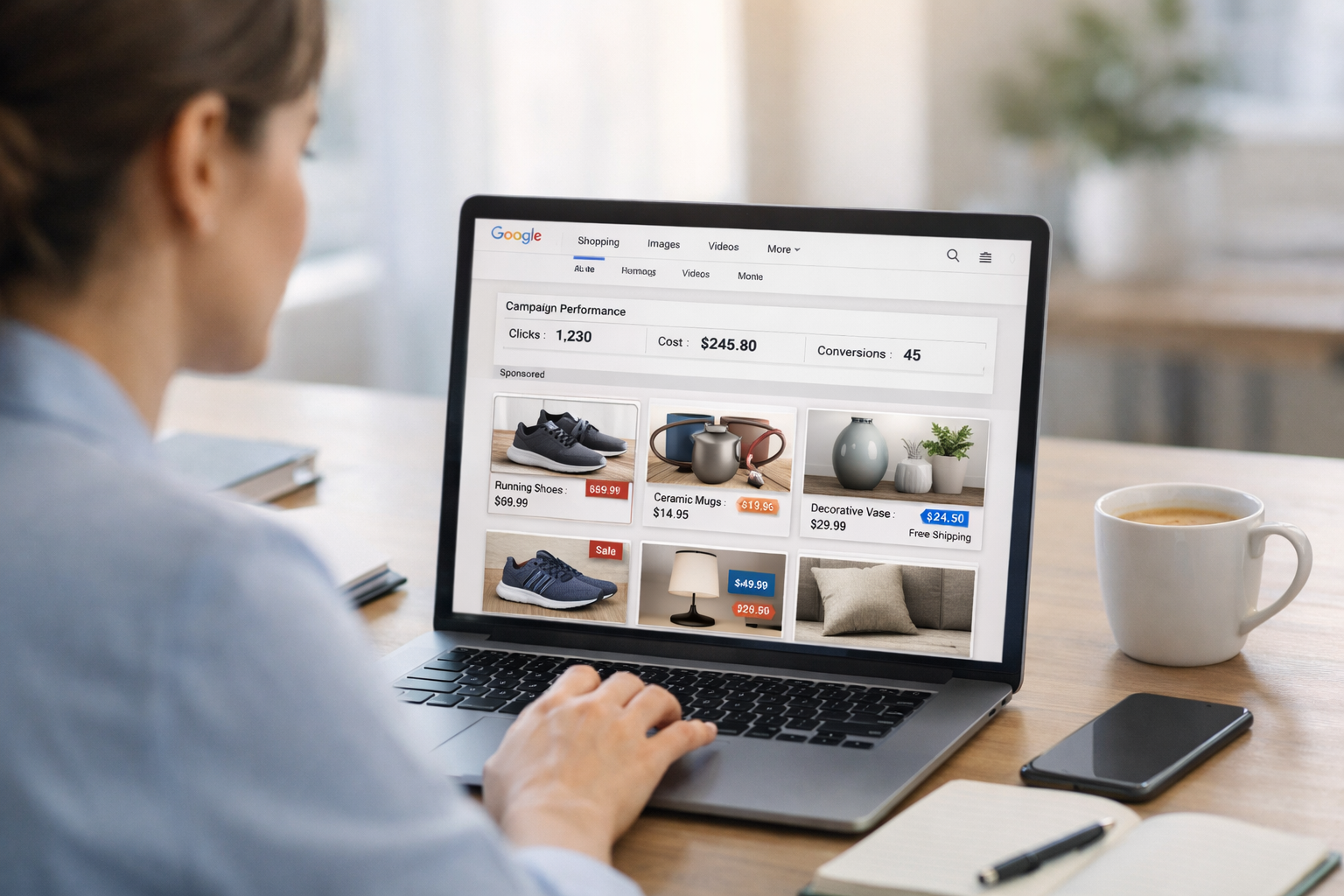
Growing an online business means getting products in front of the right customers. Google Shopping Ads are a powerful way for small businesses to showcase their items directly in search results, making it easier for shoppers to find and buy what they need. This guide offers five practical tips to help you set up and refine your Google Shopping campaigns, turning browsers into buyers with clear, concise strategies.
For many small businesses selling products online, getting noticed can feel like a huge challenge. While social media and traditional adverts have their place, Google Shopping Ads offer a direct route to customers actively searching for what you sell. Instead of text adverts, Shopping Ads display your product with an image, price, and your shop’s name, often appearing at the very top of Google search results. This makes them incredibly effective for online shops looking to drive traffic and increase sales.
Think of the Google Shopping channel as a digital shop window right on Google itself. When someone searches for “red running shoes” or “handmade ceramic mug,” your product can appear directly, making it easy for them to click through to your website and make a purchase. Many small business owners face hurdles when it comes to digital promotion. A study referenced by Fresh Business Thinking shows that almost two-thirds (63%) of UK small and medium-sized enterprises (SMEs) mention a lack of time as a main obstacle to digital marketing. Following this, budget concerns (55%) and a shortage of relevant skills (50%) are also significant issues. Source: Fresh Business Thinking. With these simple tips, we aim to make setting up and running your Google Shopping campaigns less time-consuming and more rewarding, even if your budget or skills are limited.
1. Perfect Your Product Data Feed
The product data feed is the heart of your Google Shopping campaign. This is a file, usually a spreadsheet or XML file, that contains all the details about your products – things like their name, description, price, image link, brand, and unique product identifiers (like GTINs or MPNs). Google uses this feed to decide when and where to show your products.
- Accuracy is key: Make sure all information is correct and up to date. Incorrect prices or out-of-stock items will frustrate potential customers and waste your advert spend.
- Rich descriptions: Write clear, detailed descriptions that include important keywords. Think about what your customers might type into Google to find your product. For example, instead of just “Mug”, try “Handmade Ceramic Coffee Mug with Blue Glaze”.
- High-quality images: Use bright, clear, and professional-looking images. Shoppers are highly visual, and a good product image can be the difference between a click and a scroll past.
- Unique identifiers: Include Global Trade Item Numbers (GTINs) like EANs, UPCs, or ISBNs where possible. These help Google understand exactly what you’re selling and can improve your product’s visibility.
- Regular updates: Keep your feed fresh. If prices change, stock levels go down, or you add new products, your feed needs to reflect these changes promptly. Many e-commerce platforms have tools to help with this.
2. Choose the Right Bidding Strategy
Bidding strategies tell Google how you want to spend your advert budget. For Google Shopping Ads, you’re essentially bidding on how much you’re willing to pay when someone clicks on your product advert. There are several options, and the best choice depends on your business goals.
- Manual Cost-Per-Click (CPC): This gives you full control. You set the maximum amount you’re willing to pay for each click on your product advert. This can be good for beginners as it helps you understand how much clicks cost. You can adjust your bids up or down based on how well your products are performing.
- Target Return On Ad Spend (ROAS): If your main goal is to get a specific return for every pound you spend on adverts, this is a powerful strategy. You tell Google the ROAS you want (e. g., £4 back for every £1 spent), and Google will automatically adjust your bids to try and achieve this. This option requires conversion tracking to be set up on your website.
- Maximise Clicks: If your main goal is simply to get as many clicks as possible to your website within your budget, this strategy is straightforward. Google will automatically set bids to help you get the most clicks. While it drives traffic, it doesn’t always guarantee profitable sales.
It’s a good idea to start with manual CPC to get a feel for how your adverts perform, then consider moving to automated strategies like Target ROAS once you have enough conversion data.
3. Use Negative Keywords Effectively
Negative keywords are a simple yet powerful way to save money and show your adverts to more relevant customers. These are words or phrases that you tell Google *not* to show your product adverts for. For example, if you sell new furniture, you wouldn’t want your advert to show up when someone searches for “second-hand sofa” or “free chair”.
- Save your budget: By blocking irrelevant searches, you stop people from clicking on your adverts who aren’t interested in buying your products. This means your budget is spent on genuine potential customers.
- Improve relevance: When your adverts are shown only for relevant searches, you’re more likely to get clicks from people ready to buy. This also tells Google that your adverts are good, which can sometimes lead to better positioning.
- How to find them: Regularly check your “search terms” report in Google Ads. This report shows you the actual phrases people typed into Google before seeing your advert. Look for terms that are clearly unrelated to your products and add them as negative keywords.
- Be specific: Add negative keywords at both the campaign level (for general terms you never want) and the advert group level (for terms specific to certain products).
4. Structure Your Product Groups Wisely
Product groups allow you to organise your products within your Google Shopping campaigns. Instead of putting all your iteinto one big group, breaking them down helps you manage bids, track performance, and apply negative keywords more precisely. You can divide your products using categories like brand, product type, item ID, or custom labels you create.
- Start broad, then narrow: You might begin with all products in one group, then subdivide them based on their initial performance. For example, if “dresses” are selling well, you could create a separate group for “party dresses” and “casual dresses”.
- Bid management: Structuring product groups allows you to set different bids for different types of products. You can bid higher on products that are more popular or have higher profit margins, and lower on those that are slower movers.
- Performance insights: When products are grouped logically, it’s easier to see which types of products are performing best (and worst). This helps you make informed decisions about your stock and marketing.
- Custom labels: Use custom labels in your product data feed to create your own categories. For example, you could label products as “seasonal,” “clearance,” “best-sellers,” or “high-margin” to create specific advert groups based on these characteristics.
5. Use Promotions and Special Offers
Everyone loves a good deal! Google Shopping Ads allow you to highlight promotions directly within your product adverts. This can be a brilliant way to stand out from competitors and encourage clicks and purchases. These promotions appear as a special link or text underneath your product listing, such as “15% off” or “Free delivery”.
- Google Merchant Promotions: This feature allows you to submit details of your promotions (like percentage off, money off, or free delivery) to Google. They will then show these promotions with your product adverts.
- Clarity is key: Make sure your promotion details are clear and easy to understand. State the offer, any conditions (e. g., minimum spend), and the end date.
- Timely offers: Plan promotions around key shopping periods like Black Friday, Christmas, or seasonal sales. This can significantly boost your visibility and sales during busy times.
- Test different offers: Experiment with various types of promotions to see what resonates most with your audience. Is free delivery more appealing than a percentage discount? Testing will give you valuable information.
Getting your products seen on Google Shopping can be a genuine game-changer for your online business. By focusing on these five areas – perfecting your product data, smartly managing your bids, using negative keywords, organising your products, and highlighting promotions – you’ll be well on your way to driving more relevant traffic and increasing your online sales. It takes a bit of effort, but the rewards of reaching customers who are actively looking to buy are certainly worth it.
Ready to get your products flying off the virtual shelves? If you need a helping hand setting up or managing your Google Shopping campaigns, our team of experts is here to assist you. We can simplify the process, helping you avoid common pitfalls and get the best return from your advert spend.
Frequently Asked Questions
Q: What is a Google Shopping Ad?
A: Google Shopping Ads display your products directly in Google search results with an image, price, and your shop’s name. They are highly visual adverts that appear when someone searches for a product you sell, directing them straight to your online shop.
Q: Do I need a website to use Google Shopping Ads?
A: Yes, you need an e-commerce website where customers can buy your products. Google Shopping Ads link directly to your product pages, so a fully functional online shop is essential.
Q: How much do Google Shopping Ads cost?
A: The cost varies greatly depending on factors like your industry, competition, and bidding strategy. You pay when someone clicks on your advert (Cost-Per-Click), and you set a daily budget, so you’ll never spend more than you’re comfortable with.
Q: What is Google Merchant Centre?
A: Google Merchant Centre is a tool that helps you upload and store your product data for Google Shopping Ads. It’s where you manage your product feed and connect it to your Google Ads account to start running campaigns.
Q: Can I run Google Shopping Ads if I only sell services?
A: No, Google Shopping Ads are specifically for physical products that can be bought online. If you offer services, other types of Google Ads, like Search Ads, would be more suitable.